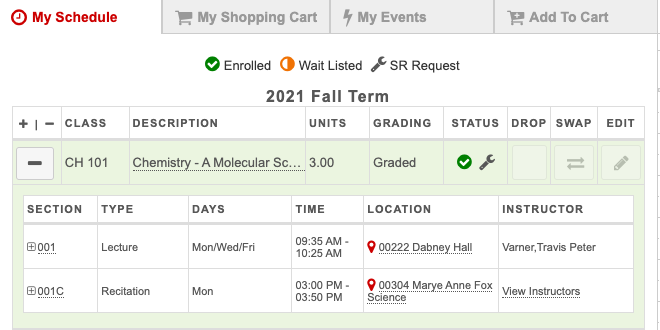
Students can submit schedule revision requests through the Enrollment Wizard after appropriate deadlines have passed. Some schedule revision actions include adding, dropping, or swapping courses. All requests will be routed to appropriate department or college officials for review.
Navigate to the Schedule Revision Request
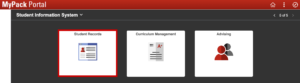
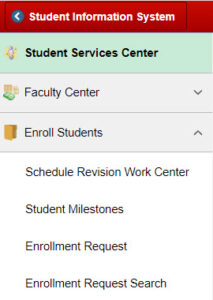
MyPack Portal > Student Information System homepage> Student Records tile > Enroll Students menu item > Schedule Revision Work Center menu item
Log into MyPack Portal
Select the ‘Student Information System’ homepage
Select the ‘Student Records’ tile
On the left hand navigation bar, select ‘Enroll Students’
From the navigation list, select ‘Schedule Revision Work Center’ (opens in new window)
Navigation for other users for approver or administrator reference:
Advisors: MyPack Portal > Student Information System homepage > Advising tile > Advisor Center menu item > Advisor Schedule Revision menu item
Faculty / Instructors: MyPack Portal > Student Information System homepage > Student Records tile > Faculty Center menu item > Instructor Schedule Revision menu item
Students: MyPack Portal > Student Information System homepage > Planning & Enrollment tile > Enrollment Wizard menu item
Completing Requests
The Schedule Revision Work Center will display different categories of request actions:
Pending Schedule Revisions: These are at the approver step and ready for final review.
Schedule Revision (Input Req): These did not initially require approval, but additional input has been requested by another user.
Schedule Rev (Awaiting Input): These are not at the approver step, but are in progress in the workflow. No action immediately required by the college or department approver.
Approvers will also receive an email notification when a request is awaiting review.
Dropping a course exceeding the lifetime drop limit (16 hour max) Note: When approving drops, approvers can select if the late drop is due to extenuating circumstances and the “W” should be excluded from counting toward the 16 hour max.
Once completed, the request will be approved and the change will be reflected on the student’s schedule.
Student Process
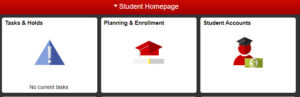
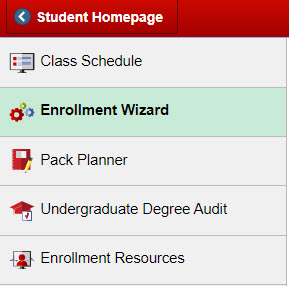
MyPack Portal > Student Information System homepage > Planning & Enrollment tile > Enrollment Wizard menu item
Log into MyPack Portal
Select the ‘Student Information System’ homepage
Select the ‘Planning & Enrollment’ tile
On the left hand navigation bar, select ‘Enrollment Wizard’
Select the appropriate Term from the dropdown menu
A wrench icon will appear under Status for actions awaiting approval Once completed, the request will be approved and the change will be reflected on the student’s schedule.