Button Block
Use Cases
The Button block provides a visually appealing way to include styled hyperlinks on a page or post. This block is good for grabbing a reader’s attention at the end of a paragraph or story, and it prompts them to dig deeper into a site and explore other relevant content. It’s important to be careful about the placement of a Button block, as readers will typically expect to find it at the end of a complete thought. Placement elsewhere, such as within a paragraph, will typically strike users as an off-putting violation of the conventions of web publishing. See an example of the Button block below.

Features
To add a button, click the “Add block” button and choose “Button” from the block list. Alternatively, find the block by using the “Search for a block” function. For more information on blocks and adding them to a WordPress site, see our documentation on blocks.
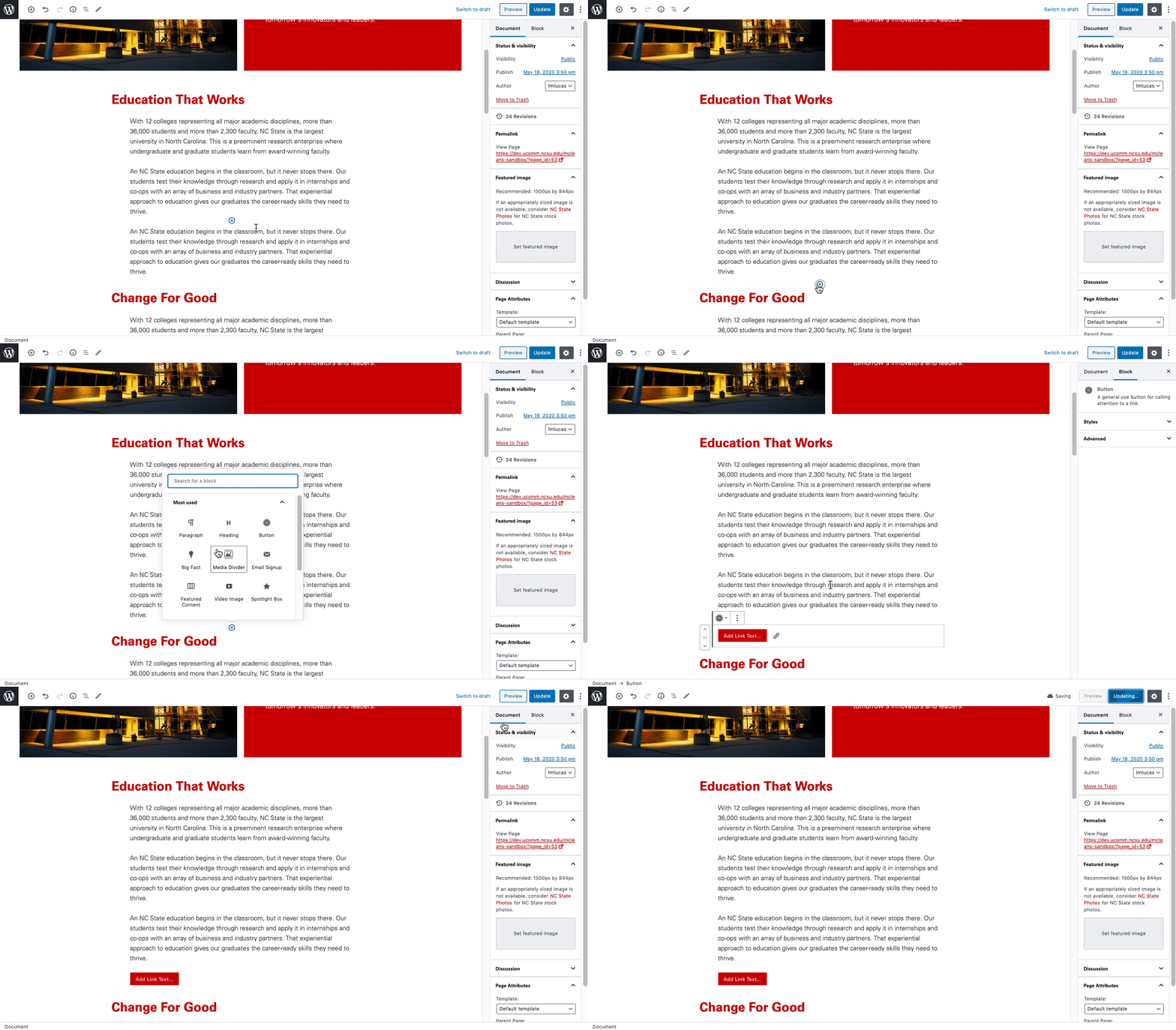
Once added, the Button block is easy to set up. Creators simply need to provide a link and call-to-action text.
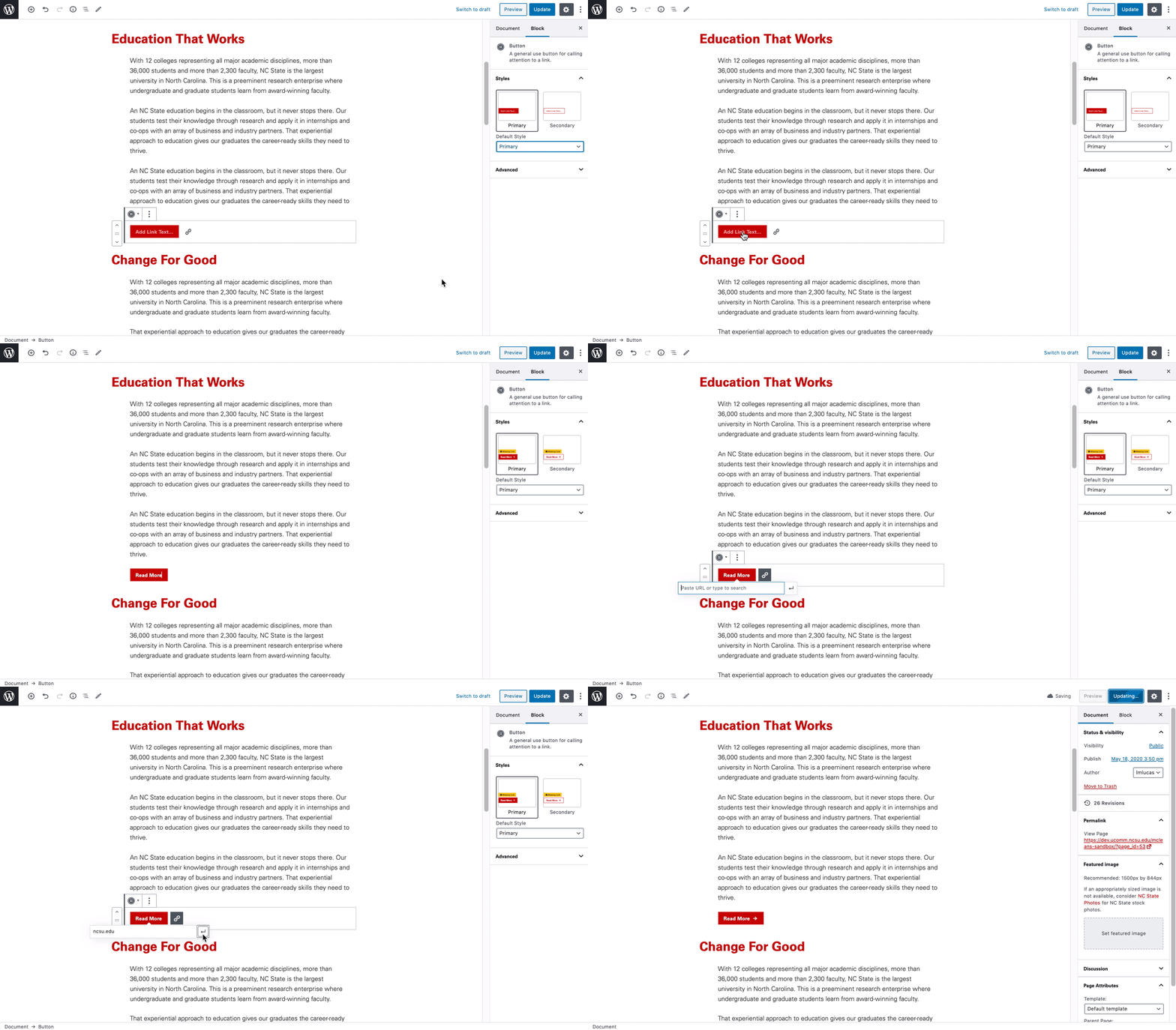
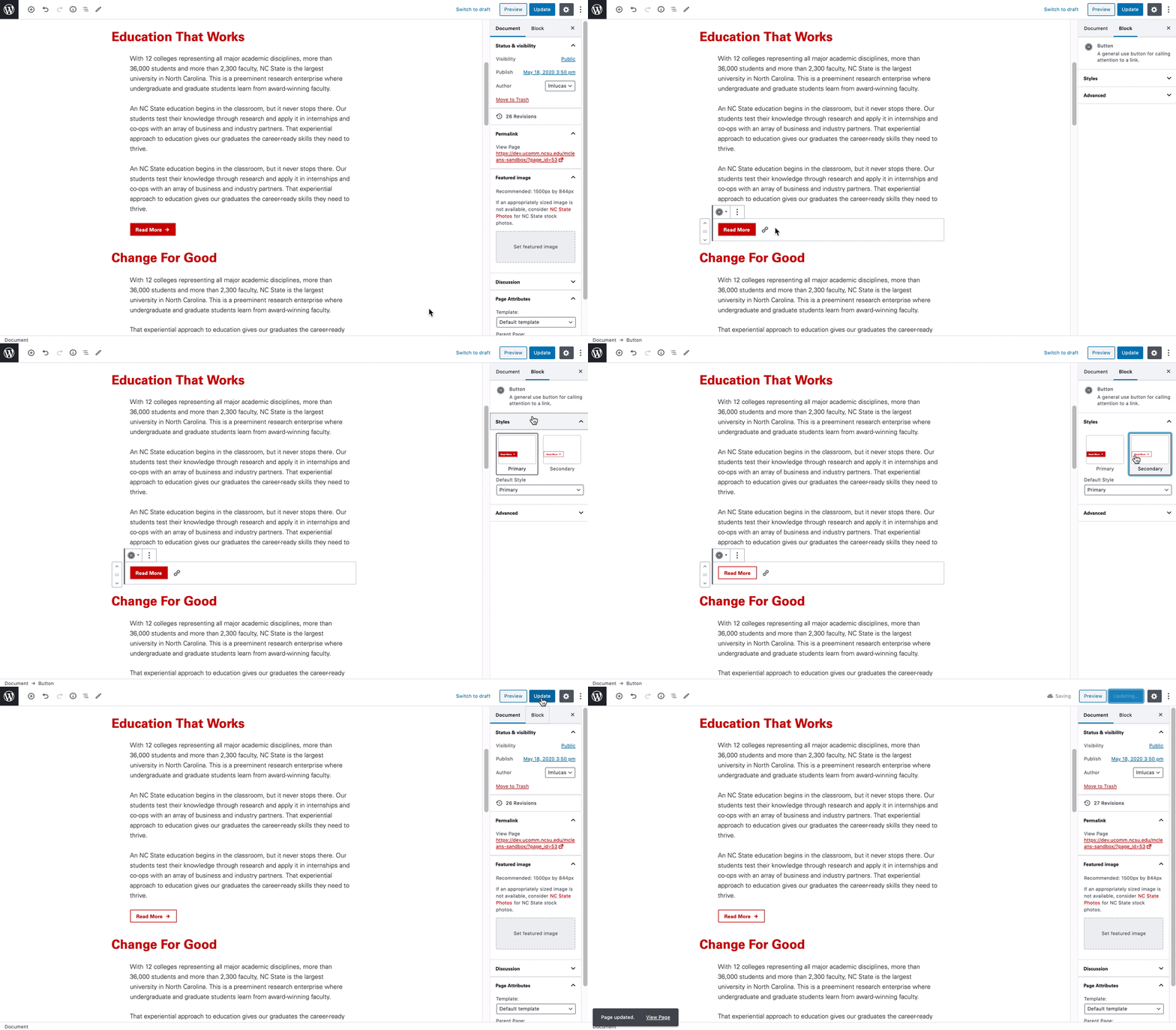
Additional customization is also available through the block settings found in the right-hand menu.
Additional Functionalities
In some cases, the styling of the Button block is context-aware. For example, when a YouTube link is placed in the Button block’s URL field, it will stylize the button to display a “play” icon. This helps tell your site’s visitors that the button leads to a video.

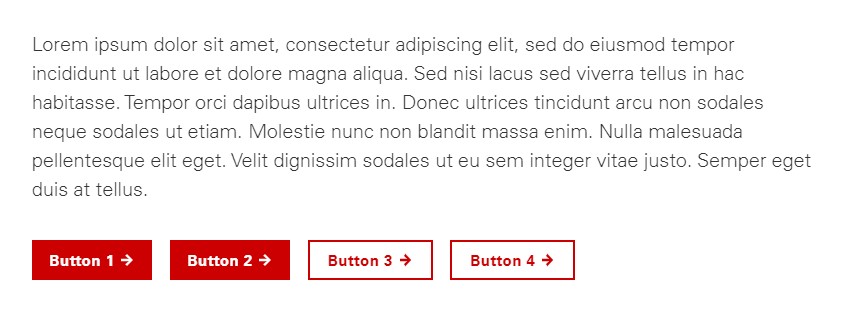
Creators can also add multiple buttons within a single block, and each button can be styled differently (see example below).
Need help?
Have questions? Feel free to reach out with any questions or concerns at go.ncsu.edu/ucomm-dev-request.